

There's a question a lot of people in the AI space have been asking lately: what is OpenClaw, and why does everyone who tries it either love it or walk away slightly overwhelmed?
If that's you — curious, maybe a little skeptical — you're in the right place. In this article, you'll be able to explore the functionality and features of OpenClaw. I'll show you what it actually does, how it works under the hood, and how to set it up and use it.
In this article
So, What Is OpenClaw?
Here's the simplest way to put it:
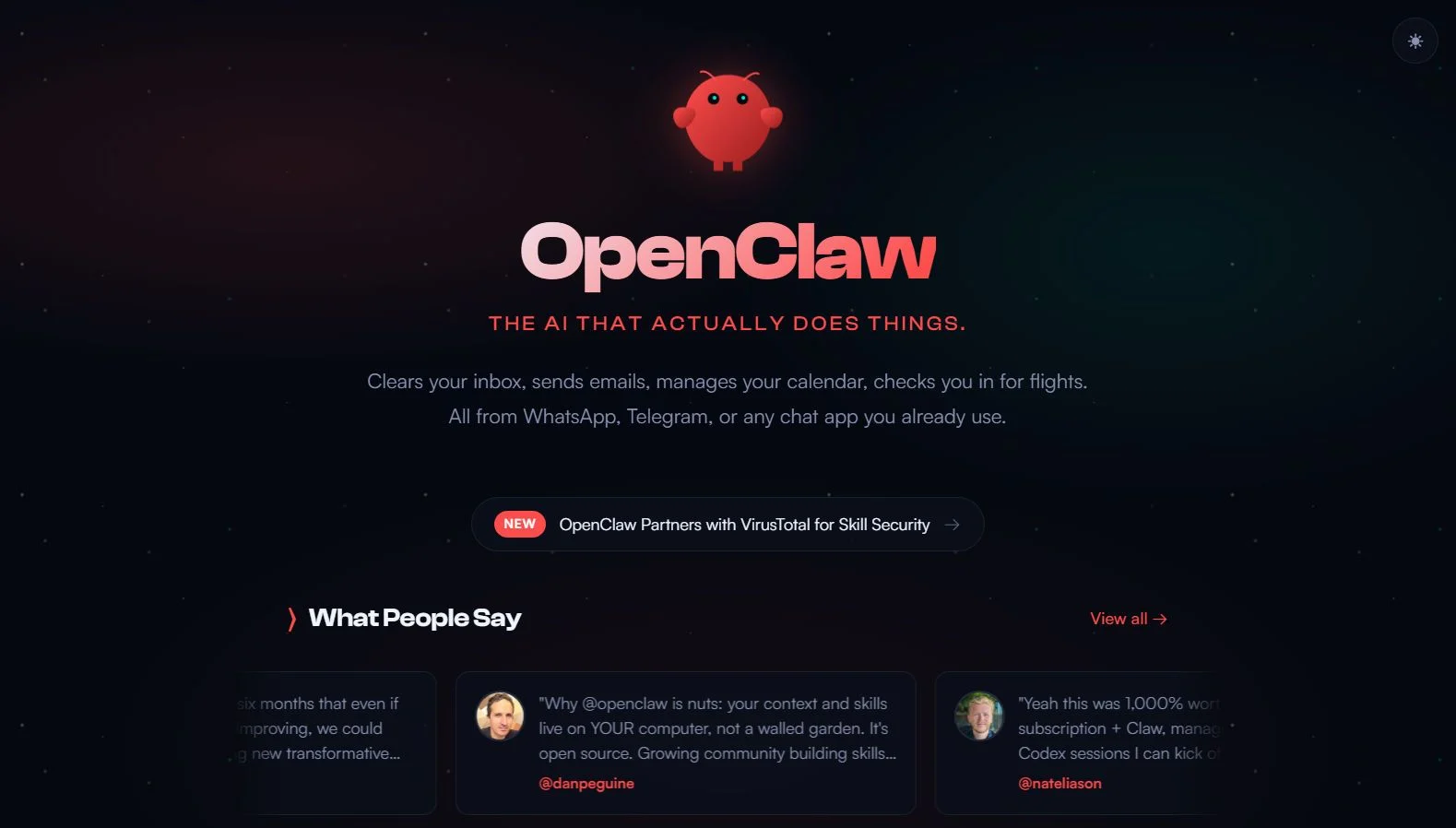
OpenClaw is an AI assistant that runs on your own device and can take action on your behalf, not just chat.
It connects to messaging apps like WhatsApp, Telegram, Discord, and Signal, and can automate things like inbox checking, calendar tasks, browser actions, and file operations.
The History of OpenClaw
In late 2025, a developer named Peter Steinberger did a small hack to see if he could hook an AI model into a messaging app. By November 2025, it had evolved into a big project and picked up a name: Clawd — a cheeky nod to Anthropic's Claude model and a certain crustacean.
Later, due to legal issues, the community voted on a new name: Moltbot, a reference to the way lobsters shed their shells as they grow.
The name stuck for a while, but eventually one more rebrand was needed to get the trademark searches clean and the domains locked. And that's how OpenClaw was born. The name carries real meaning: "Open" for open source. "Claw" as a reminder of the lobster heritage.
What Makes OpenClaw Different From Other AI Tools
The key difference is what it can actually do. OpenClaw doesn't just answer questions in a chat window — it can read and write files on your computer, run shell commands, control your browser, fetch information from the web, set up scheduled tasks, and integrate with your apps.
It's less like a chatbot and more like a capable digital colleague that lives on your computer.
How It Works: The Architecture (Explained Plainly)
Okay, a little bit of technical context here — but I promise to keep it friendly.
OpenClaw is built around something called the Gateway. Think of the Gateway as the brain of the operation: a central hub that runs on your device and coordinates everything.
It's described by the project itself as the "control plane" — the thing that manages your conversations, your tools, your sessions, and the connections to all your different chat apps.
When you fire up OpenClaw, the Gateway starts running quietly in the background, listening for incoming messages across whatever channels you've connected. It processes those messages, passes them to the AI model of your choice, gets a response, and sends it back — all in a loop, all locally managed.
Here's a visual way to think about it:
WhatsApp → ─┐
Telegram → ─┤
  Slack  → ─┤──▶ [ Gateway (your machine) ] ──▶ AI Model ──▶ Response
 Discord → ─┤
  Signal → ─┘
The Gateway acts as a single point of truth. Every channel connects through it. Every session is tracked through it. Every tool — whether that's a browser controller, a file reader, a cron scheduler, or an integration with an external app — is wired through the Gateway.
By default, the Gateway binds to your local machine only. If you want to access it from another device, you do so through a secure tunnel, not by opening it up to the internet. That's the local-first philosophy made technical: private and locked down by design, with the option to expand access on your terms.
Your Channels, All at Once
One of OpenClaw's headline features is multi-channel messaging. The supported list is genuinely impressive: WhatsApp, Telegram, Slack, Discord, Signal, iMessage, Google Chat, Microsoft Teams, Matrix, IRC, LINE, WeChat, Twitch, Nostr, and more.
You can run multiple channels simultaneously, and OpenClaw will route each conversation to the right agent context.
Multi-Agent Routing
Speaking of personas and workspaces: OpenClaw supports multi-agent routing, which lets you create multiple isolated agents within the same installation.
You might have one agent for work tasks, one for personal life, and one that only activates when messages come from a specific group chat. Each agent maintains its own conversation history and context independently.
Various Tools Built In
Beyond just chatting, OpenClaw gives your assistant real-world capabilities through a suite of built-in tools:
- Browser control — It can navigate the web, fill in forms, and scrape content just like a human would.
- File system access — Read and write files on your machine directly.
- Shell execution — Run commands, scripts, and automations.
- Cron scheduling — Set up recurring tasks that fire on a schedule.
- Canvas — A visual workspace accessible through a web interface served by the Gateway itself.
- Node system — Extend capabilities to other devices on your network, like a Raspberry Pi running device-specific actions (camera, notifications, etc.).
Your Memory Lives at Home
All session data is stored locally in a folder on your machine — typically ~/.openclaw. Your conversation history, agent configurations, memory files: all right there. You can inspect them, back them up, move them. No black box.
Main Features of OpenClaw at a Glance
Let's pull the key features together into a clear picture:
| Feature | What It Means for You |
|---|---|
| Local-first Gateway | Your AI runs on your machine; data stays private |
| Multi-channel inbox | Chat with your assistant on WhatsApp, Telegram, Slack, and more |
| Multi-agent routing | Different AI "personas" for different contexts or channels |
| Browser & shell tools | Your assistant can actually do things on your computer |
| Cron & scheduling | Automate recurring tasks without cloud subscriptions |
| Open source | Inspect the code, extend it, contribute to it |
| MCP server support | Connect external tools and skills |
| Self-hosted | No SaaS fees, no third-party data handling |
How to Set Up OpenClaw
Your computer should have a supported OS (macOS, Linux, and Windows through PowerShell or WSL2).
You also need an API key from a provider such as Anthropic, OpenAI, or Google; onboarding prompts you for this key.
Make sure Node.js is installed on your computer. OpenClaw requires Node.js 22.14+ and recommends Node 24.
Install OpenClaw with the following command:
curl -fsSL https://openclaw.ai/install.sh | bash
Run the onboarding wizard:
openclaw onboard --install-daemon
It will ask you to choose a provider, enter an API key, and configure the gateway.
Check that it is running:
openclaw gateway status
You should see the gateway listening on port 18789.
Open the control UI:
openclaw dashboard
If the dashboard loads, setup is working.
Feeling Overwhelmed? Web-Hosted OpenClaw is Also Available!
If all these sound a bit overwhelming, you can also try a web-hosted OpenClaw.
A web-hosted OpenClaw instance runs on a server or virtual machine, instead of only on your own local computer.
And there are third party service providers that offer a zero-setup managed experience with full OpenClaw features accessible through your browser.
See the comparison of self-hosted and web-hosted OpenClaw instances below:
| Aspect | Self-hosted OpenClaw | Web-hosted OpenClaw |
|---|---|---|
| Setup | You install and configure it yourself. | The provider handles deployment and gives you a browser-based experience. |
| Maintenance | You handle updates, patches, backups, and troubleshooting. | Updates, security patches, and backups are typically managed for you. |
| Control | Full control over the server, network, integrations, and customization. | More limited because the platform controls the environment. |
| Reliability | Depends on your own monitoring and server setup. | Often comes with managed uptime, monitoring, and simpler recovery. |
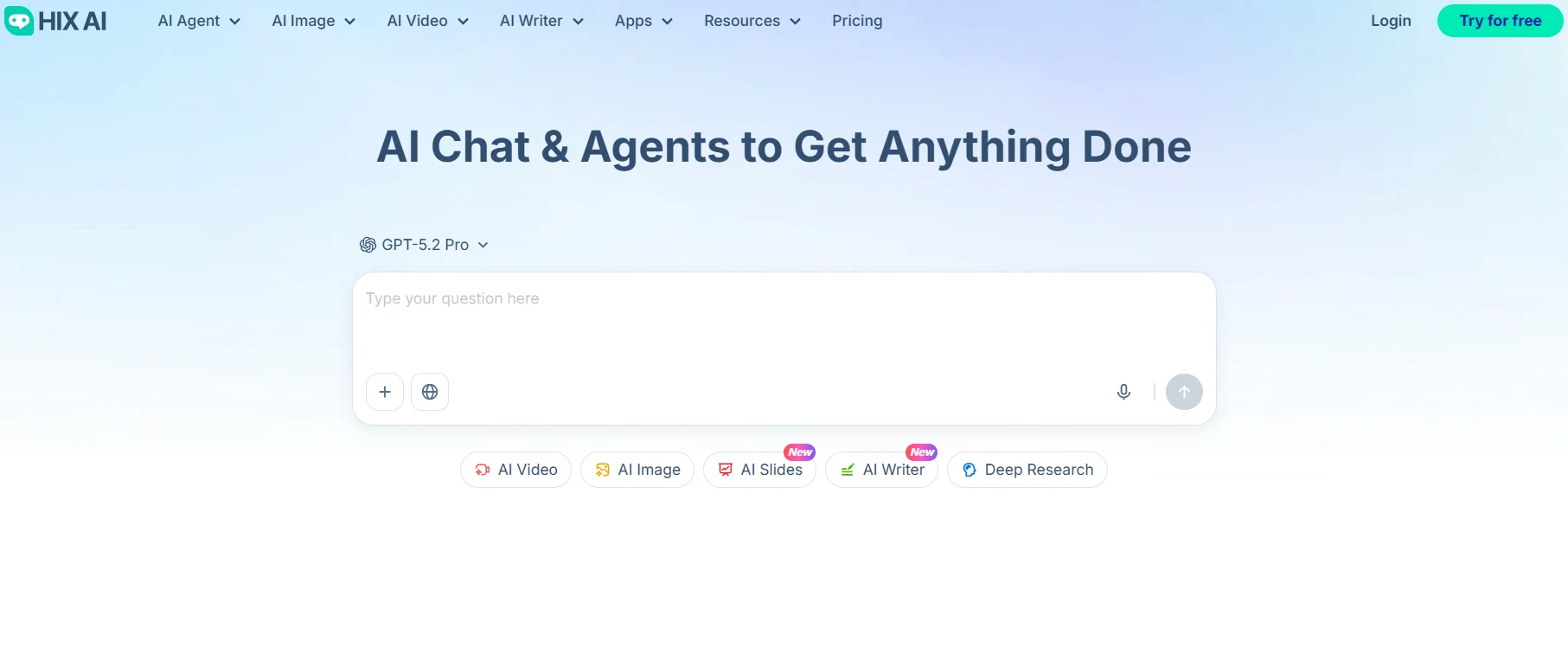
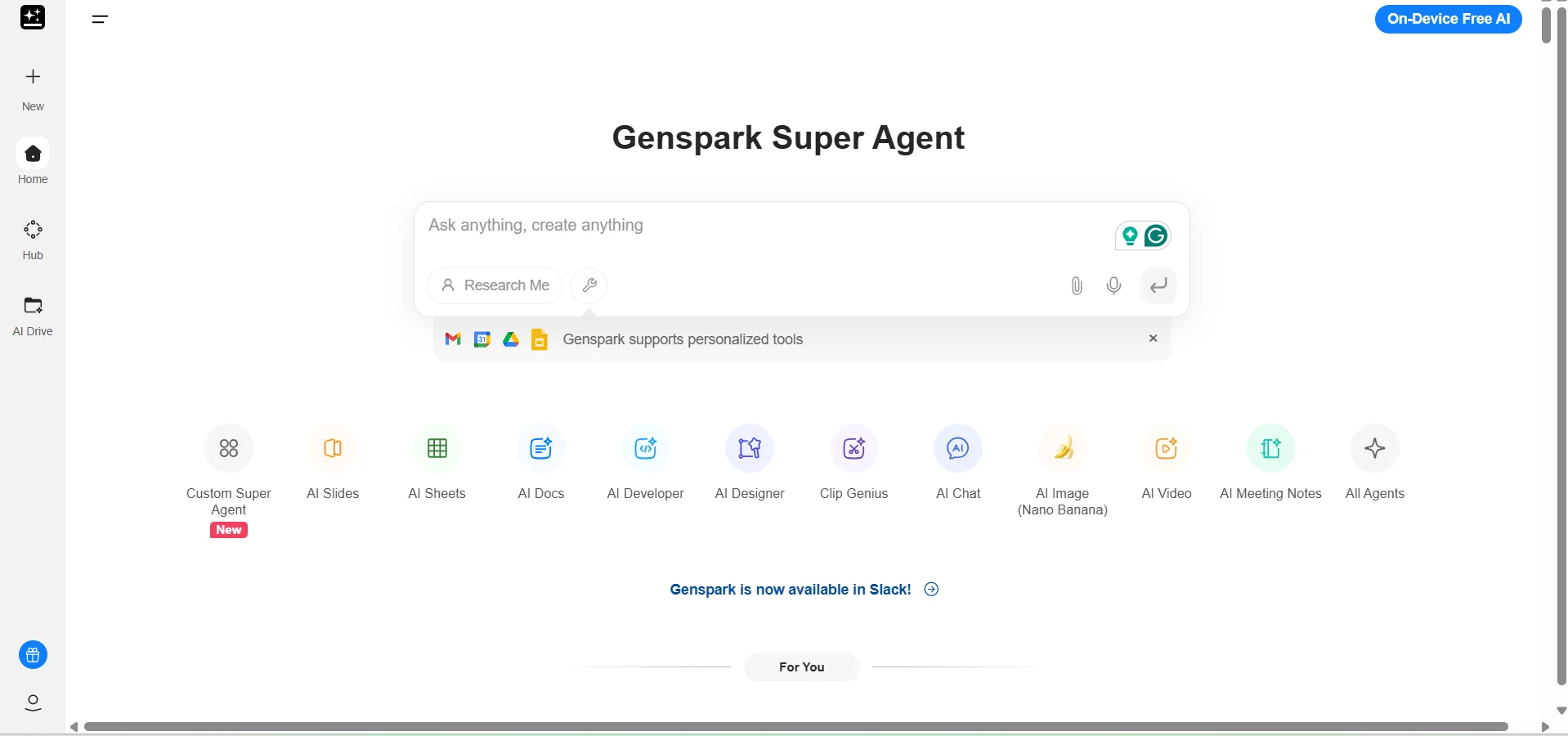
If you need a reliable, easy-to-use web-hosted OpenClaw service provider, I recommend you try InClaw AI.
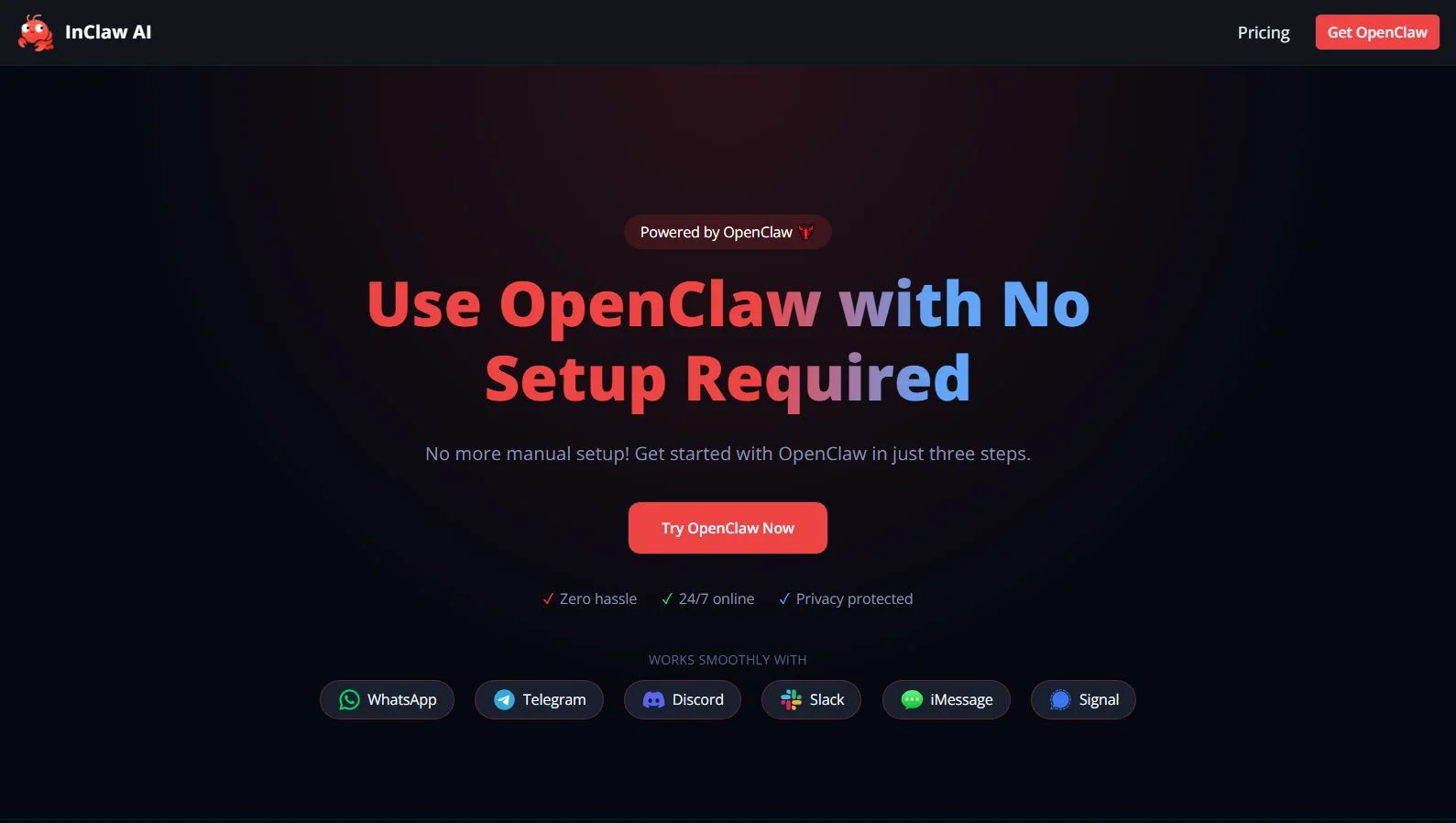
With zero technical expertise required, InClaw eliminates the hours of configuration, maintenance, and hidden costs associated with self-hosting. Simply sign up, and it will create a private, 24/7 monitored OpenClaw instance automatically.
Once the instance is up and running, you unlock the full power of OpenClaw without any compromises. It comes packed with over 100 skills, 50+ connected services, and support for 30+ AI models.
⚡ Easy to Use • 💯 Full OpenClaw Features • 🌟 4.9/5 Rating
Tips for Getting the Most Out of OpenClaw
A few things users have found genuinely useful:
- Be specific in your prompts. The more context you give, the better the result. "Help me with my email" will get you a generic response. "Summarize the unread emails in my inbox from the last 48 hours and flag anything that looks time-sensitive" will get you something actually useful.
- Use the memory deliberately. When something matters — a preference, a project detail, a recurring task — explicitly tell your assistant to remember it. "Remember that I prefer bullet-point summaries over paragraphs" is a valid instruction.
- Start narrow, then expand. The temptation is to hook up every channel and enable every tool on day one. Resist it. Get comfortable with one workflow, then add another. The system rewards methodical expansion.
- Keep an eye on API usage. Especially if you've set up agentic workflows that browse the web or process large files, those token counts add up. Most model providers have usage dashboards — a quick weekly check is worth the habit.
The Bigger Picture
OpenClaw represents something genuinely interesting in the current AI landscape. It is an assistant that is fundamentally yours.
Is it all-powerful? Probably not yet. Is it a glimpse of what personal AI could look like when it's truly personal? Absolutely.
If you're trying to take care of the repetitive or mechanical parts of your life with AI — OpenClaw is definitely worth a look.